Search Your Queries Here

Showing posts with label amibroker. Show all posts

Now2Ami - realtime datafeed to AmiBroker from the NOW terminal

0 comments
Now2Ami - realtime datafeed to AmiBroker from the NOW terminal

This utility extracts intraday quotes from the market watch of NOW terminals in real time, and datafeeds the price quotes / volume (or OHLCV) to AmiBroker. The NSE NOW terminal provides live quotes for Equities, F&O, and currency scrips of National Stock Exchange, India.

Now2Ami can also backfill M1 (1 minute) stock prices for the current day, and for the last 15 to 20 days using Nest Plus.

The program aims to fill the need for those desiring better graphing and analysis abilities than available in NOW or Nest Plus, and preferring the use of AFL scripting features in AmiBroker. While graphs update real time, the stored database can optionally be aggregated to 1 minute OHLC intervals (to keep database size smaller) or fed as 'tick' data (more correctly, snapshot data) suitable for volume or range bars.

This data feeder is suitable for those who are looking for live updates of NSE stock quotes based on what is available in your trading terminal, and not on what is stored and retrieved from a server. An alternate feeder for NSE realtime quotes (and MCX as well) is Nest2Ami.

Versions

Version 0.84 (May 2013) adds

ability to backfill in parallel with capture.
symbol translation in Settings to enable automatic renaming of symbols. For example, the symbol for current month NIFTY would be NIFTY_1 if using the Symbol_N renaming option.
Earlier versions had implemented
Now2Ami, Realtime,Data,to,Amibroker

adjustments to work with NOW 1.8.x.
Nest Plus backfill that provides historical quotes for a larger number of days.
ability to (optionally) capture tick / snapshot data.
selectable column capture such as Open Interest, ATP, or TBQ / TSQ.
Hardware / Software / OS requirements

Works with various versions of NOW (version 1.6.0 or 1.7 or 1.8 is assumed). AmiBroker version 5.2 or later is assumed (the free version does not save data). A subscription to Nest Starter Pack version 1.3 or 1.4 or 1.5 (earlier free upto Mar 2013, and now extended) is required for Plus backfill

Requires a minimum of XP SP3 (XP SP2 is no longer supported, and users will have to upgrade). Uses .Net Runtime 3.5 with SP1. Available from this link on the Microsoft website. It has not been tested on 64-bit machines (though users have reported successful usage).

Notes

The version you use may have limitations, e.g. number of symbols that can be captured, or expiry date of software.
May require administrator permission to run successfully.
Read the help file for more information.

Now2Ami Download:  Download links will only be available by request. 

By request only. Write, with some details about yourself, , and your broker, to Now2Ami@91-33.com
Website : http://91-33.com/download/Now2Ami.html


Read More »

Odin2Ami - Odin terminal to Amibroker realtime datafeed software

0 comments
Odin2Ami - Odin terminal to Amibroker realtime datafeed software

Odin2Ami (Odin to AmiBroker) extracts intraday real time Market Watch data from Odin terminals (Odin Diet, Odin Client), and feeds AmiBroker. Market quotes for Equities, F&O, Index and currency scrips of Indian stock market exchanges such as NSE, MCX, is possible depending on your broker subscription. As a data feeder, the live market quotes are solely from your trading terminal, and does not use, or support, any server based quotes sources.

The live captured data is from the Odin market watch window, and based on scrips available there. The output names of instruments may be renamed with pre-configured settings or manually. Snapshots of realtime data, comprising last traded price & volume, are taken at a configurable interval down to 1 second. Captured quotes fed to AmiBroker may be 'tick' (actually snapshot) data, or may be aggregated to 1 minute bar intervals. Using M1 aggregated OHLCV in Amibroker reduces the database by about 30 times, and appeals to intraday traders who do not look at price charts below minute intervals. Besides the OHLCV data, you can also capture an additional three columns from the market watch, for example Open Interest or Avg. Trade Price (ATP), or TBQ or TSQ (Total Buy / Sell Quantity).

Backfill is available based on what is provided by ODIN terminal -- this is M1 (1 minute) data for the current day. Historical multiple-day backfill is only possible if your broker provides it. Tick data is extracted from the charts; 1 minute data has two sources.

This Odin feeder is a long overdue branch of the older O2A utility that captured Diet Odin market watch value (also Orders Book and Trades) for output to ASCII files. If your terminal is NOW or Nest Trader, and you are looking for a real time feeder for AmiBroker, you may also like to take a look at Now2Ami or Nest2Ami linked below.

Versions

The current version 0.84 beta (May 2012) adds

ability to backfill in parallel with capture.
M1 backfill using Odin charts (Tick backfill from charts was available in a previous version). If your continuous intraday charts can show multiple days, backfill can cover that range.
additional automatic symbol translation options, such as Symbol_N for NSE where the symbol for current month NSE NIFTY futures be translated to NIFTY_1.
Previous versions added

some improvements to accomodate terminal variations such as Angel Speed Pro with its Office-like interface
tick backfill using data available from Odin charts
data capture and backfill for spot indices (indexes) such as NIFTY, or CNXIT
Odin To Amibroker real time data

Hardware / Software / OS requirements

Works with Diet Odin or Odin Client version 10.x. though it has not been extensively tested across vendor platform / exchange variations. AmiBroker version 5.2 or later is assumed (the free version does not save data).

Requires a minimum of XP SP3. Uses .Net Runtime 3.5 with SP1. Available from this link on the Microsoft website. It has not been tested on 64-bit machines (though users have reported successful usage).

Notes

The version you use may have limitations, e.g. number of symbols that can be captured, or expiry date of software. You need to register for a trial licence.
Requires XP SP3 minimum. Uses .Net Runtime 3.5 with SP1. Available from this link on the Microsoft website.
Depending on the OS, may require administrator permission to run successfully.
More information in the help file.
Please do not confuse this utility with the similarly named Odin2Ami Free or Odin2Ami Pro from aamaadmisoftware.

Odin2Ami Download:  Download links will only be available by request. 

By request. Write, with some details about yourself (also your Odin type / version and broker / provider), to Odin2Ami@91-33.com


Read More »

How to get email alerts from Amibroker with SSLADDON plugin

0 comments
1. Download SSLAddon for Amibroker and install it.
2. Now open Amibroker. Navigate Tools–>Preferences
3. Select “Alerts” tab in the Preferences window
4. Ensure the following settings for sending alerts to your Email account:
when any signals generates


5. Now finally click the TEST button to get test mail alert to your email. Here is the sample screenshot of the test email alert to my  Email account:
when any signals generates

Email Alerts From Amibroker with SSLADDON Plugin


Read More »

Metatrader to Amibroker Tick Charts using DDE universal plugin

0 comments
Here is a very simple solution to get Realtime Tick Charts in Amibroker using Metatrader DDE Server.

Software Requirements :

Amibroker , Metatrader 4

Steps to Get Realtime Tick Charts in Amibroker

1)Open Metatrader 4


2)Goto Tools->Options->Server and Check Enable DDE Server option this will enable Metatrader to export it quotes in realtime format to another software (DDE listener)


MT4 to Amibroker

3)Now OpenAmibroker

4)Goto File->New->Database


5)Enter the Database Name and click on the CREATE button. This will create a new database.


6)Set the BASE TIME INTERVAL to tick and press ok.


7)In Amibroker goto File->Database Settings.


8)Select Data Source as DDE Universal Plugin.

MT4 to Amibroker tick by tick real time data


9)Now Click on configure and now do the DDE Configuration settings as shown below.

Realtime tick by tick data from metatrader to amibroker

10)After the DDE Configuration Settings. you will see a yellow WAIT signal at the bottom of the status bar in amibroker.

11)In Amibroker goto Symbol->New and type the New symbol as same as in metatrader for ex : EURUSD

12)Now you will notice that yellow WAIT signal status changed to green CONN status.

13) Tick charts will be coming to amibroker in realtime from MT4 DDE Server.

Tested in : Windows 8
The main drawback of this Universal DDE plugin is it doesn't supports backfill. 

Read More »

NOW, NEST, TT, EXCEL2AMI FREE Setup-No Backfill (Personal Use Only)

0 comments
datafeed from NOW, NEST, TRADETIGER to Excel to Amibroker

This utility fetch realtime datafeed from NOW, NEST, TRADETIGER to Excel  and pull it into AmiBroker.


EXCEL2AMI FREE SETUP INSTRUCTIONS:

When you run software you will see disclaimer. Click on OK to accept it.
After accepting disclaimer, you will see screen as shown above:


We will explain process to fetch data from Nest Terminal to Excel sheet.
Run NEST Trader and right click on the market watch. Select Link to Excel
and All Items.

datafeed from NOW, NEST, TRADETIGER to Excel to Amibroker


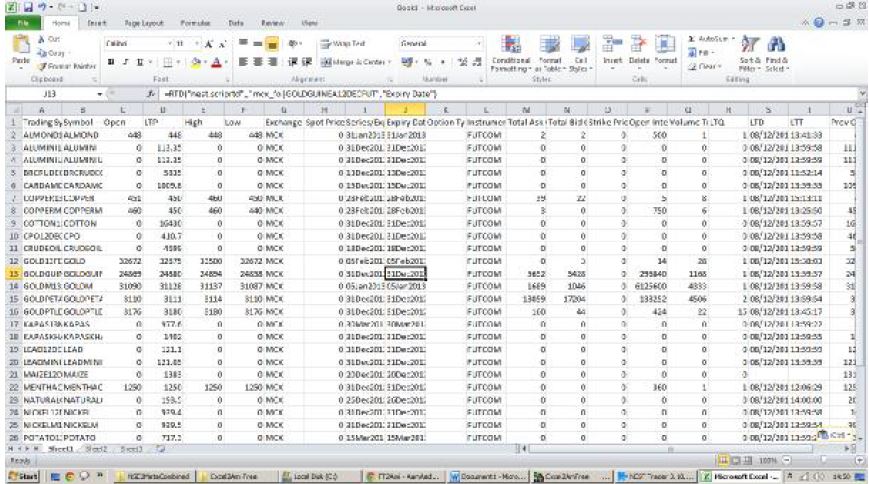
Now open Excel and paste on the very first cell.

datafeed from NOW, NEST, TRADETIGER to Excel to Amibroker

You will see all the columns details and rates in Excel. If they are into

coming then you need to contact your broker and get this feature
enabled.

datafeed from NOW, NEST, TRADETIGER to Excel to Amibroker

Once you get all the columns and data in excel, Select LTD column and set
it’s format to Date and dd/mm/yyyy as shown below:
datafeed from NOW, NEST, TRADETIGER to Excel to Amibroker

realtime datafeed from NOW, NEST, TRADETIGER to Excel to Amibroker

Similarly you need to set the format of LTT column to Time as HH:MM:SS
as shown below:

realtime datafeed from NOW, NEST, TRADETIGER to Excel to Amibroker

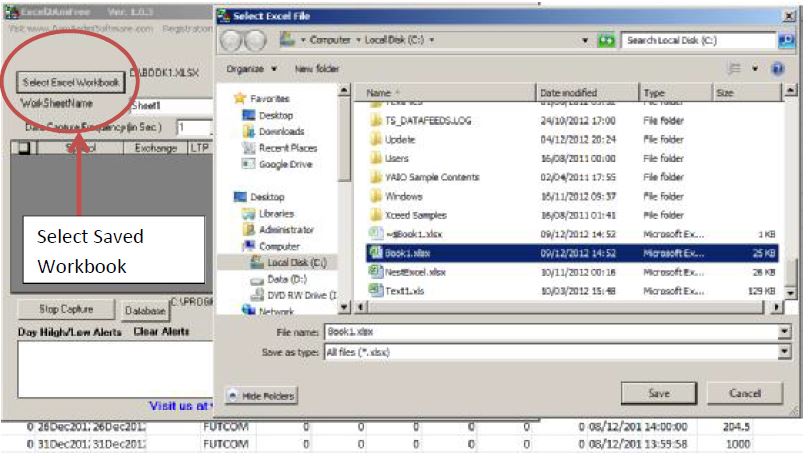
Save this Excel file as C:\Book1.xlsx. You can save it with any name and
any location. You need to select the same file in Excel2Ami Free by Clicking
Select ExcelWorkbook as shown below:

realtime datafeed from NOW, NEST, TRADETIGER to Excel to Amibroker
Make sure that name of the worksheet is same as mentioned in excel
workbook. It is case sensitive. So be careful:
realtime datafeed from NOW, NEST, TRADETIGER to Excel to Amibroker
Now you are ready to capture data from excel sheet. Click on Start
Capture. If essentials columns are missing in your market watch of your
terminal then you will see message like this:
realtime datafeed from NOW, NEST, TRADETIGER to Excel to Amibroker

After adding all the required columns click on OK on the message
displayed. You should see rates in Excel2Ami software.
This is all what is required to get data from Excel to Amibroker.


Read More »

Export intraday and EOD data to TXT files from Amibroker to TEXT

0 comments


First Process

Export intraday and EOD data to TXT files
One file for each stock
In the first line insert the directory you want to save them to, make sure the
directory exists
Select your charts to export with the “Apply to” filter in AA window
Select the timeframe period you want to save as using the AA “Settings”
Press Scan button

AFL :


/*
Export intraday and EOD data to TXT files
*/
fh = fopen( "c:\\SaveData\\"+Name()+".txt", "w");
if( fh )
{
   fputs( "Ticker,Date,Time,Open,High,Low,Close,Volume \n", fh );
   y = Year();
   m = Month();
   d = Day();
   r = Hour();
   e = Minute();
   n = Second();
   index = BarCount - 420;
   if(index > 0)
   {
    for( i = index; i < BarCount; i++ )
    {
      fputs( Name() + "," , fh );
      ds = StrFormat("%02.0f-%02.0f-%02.0f,",
                     y[ i ], m[ i ], d[ i ] );
      fputs( ds, fh );
      
      ts = StrFormat("%02.0f:%02.0f:%02.0f,",
                     r[ i ],e[ i ],n[ i ] );
      fputs( ts, fh );
      qs = StrFormat("%.4f,%.4f,%.4f,%.4f,%.0f\n",
                     O[ i ],H[ i ],L[ i ],C[ i ],V[ i ] );
      fputs( qs, fh );
    }
   }
   else {
    for( i = 0; i < BarCount; i++ )
    {
      fputs( Name() + "," , fh );
      ds = StrFormat("%02.0f-%02.0f-%02.0f,",
                     y[ i ], m[ i ], d[ i ] );
      fputs( ds, fh );
      
      ts = StrFormat("%02.0f:%02.0f:%02.0f,",
                     r[ i ],e[ i ],n[ i ] );
      fputs( ts, fh );
      qs = StrFormat("%.4f,%.4f,%.4f,%.4f,%.0f\n",
                     O[ i ],H[ i ],L[ i ],C[ i ],V[ i ] );
      fputs( qs, fh );
    }
   }
   fclose( fh );
}
Buy = 0;


Second Process

fmkdir( "C:\\SaveData" );
Buy = ( (DateNum() >= 1121220) AND (DateNum() <= 1121231) ); // data exported from 20/12/2012 to 31/12/2012

//if we want to export data for a single Day, we modify the Second line like this
//Buy = ( (DateNum() == 1070129));

for( i = 0; i < BarCount; i++ )
if( Buy[i] )
{
//fh = fopen( "C:\\SaveData\\intraday.csv", "a");//if we want to export all data in a single file//
fh = fopen( "C:\\SaveData\\"+Name()+".csv", "a");// if we want to export data in an individual file//
if( fh )
{
y = Year();
m = Month();
d = Day();
r = Hour();
e = Minute();
s= Second();

for( i = 0; i < BarCount; i++ )
if( Buy[i] )

{
fputs( Name() + "," , fh );
ds = StrFormat("%02.0f/%02.0f/%02.0f%02,",
y[ i ], m[ i ], d[ i ] );
fputs( ds, fh );

ts = StrFormat("%02.0f:%02.0f,%02.0f",
r[ i ],e[ i ]),s[i];
fputs( ts, fh );

qs = StrFormat("%.2f,%.2f,%.2f,%.2f,%.0f,%.2f\n",
O[ i ],H[ i ],L[ i ],C[ i ],V[ i ] ),OI[i];
fputs( qs, fh );
}
fclose( fh );
}
}

/*Export Data from Amibroker to ASCII files

Here there is a formula available to export data from Amibroker to ASCII files. With the formula we can export data for a specified period from Amibroker database.

How to export:

Scan with the formula in Automatic Analyser (AA) in Amibroker.
The formula will create a folder in C drive named 'Savedata' and will collecte the data in separate text files for each symbol.

Periodicity:

WE can export the data for different periodicity 1min, 5min, 10min or daily etc. as we required. To configure that go to AA > settings > General > Periodicity and set periodicity. Thus we can get data for 5min, 10min, 1 Hour, daily etc.

Select Date Range:

To set the date range, we have to edit the formula.
Open AA > pick (the formula file) > edit.
In the second line we can see:

Buy = ( (DateNum() >= 1061225) AND (DateNum() <= 1070110) );

First DateNum is the start date and second DateNum is end date.
The current settings will export data from 20061225(=10612205, so 2006 =106) to 20070110.
Just like that, we can select another date range. Instead of 2006, should give 106 and for 2007, give 107 etc. Month and date are same. Save the formula and scan it.
It will export and save the data in C:\Savedata folder.
If you want to export for an another date range, that will also be added to the corresponding files just after the current data.*/ 

Read More »